
How to Vote on Interfold
A step-by-step guide to casting a receipt-free secret ballot, using optional privacy tools, and confirming your submission.
Interfold governance runs on Aragon OSx and uses Interfold’s receipt-free secret ballots.
Take part in Interfold governance
Explore proposals and cast your secret ballot with eligible voting power.
Before you start
How your FOLD counts toward voting power depends on how it’s held:
- Liquid or locked FOLD: liquid FOLD must first be locked through the governance interface. Locked FOLD counts once delegated to yourself or another address. Unlocking involves a 30-day withdrawal delay.
- Bonded FOLD: counts automatically for the bond owner, without separate delegation.
- Eligible vesting FOLD: counts automatically, without separate delegation.
Using a Safe? If it cannot vote directly, you can delegate its bonded or vesting voting power to another address, which must accept the delegation. This differs from locked FOLD delegation; see the governance docs for instructions.
Eligibility is fixed per proposal. Voting power is measured immediately before the proposal is created. Any required locking, delegation, and acceptance must be completed before that snapshot. Changes afterward won’t affect eligibility or voting weight for that proposal. The voting panel shows the connected wallet’s eligible voting power.
Allow time to finish. Encryption and proof generation can take several minutes or longer, depending on your device. Keep the page open until your submission is confirmed.
1. Choose a proposal and your vote
Open Interfold Governance, connect your wallet, and open the proposal you want to vote on.
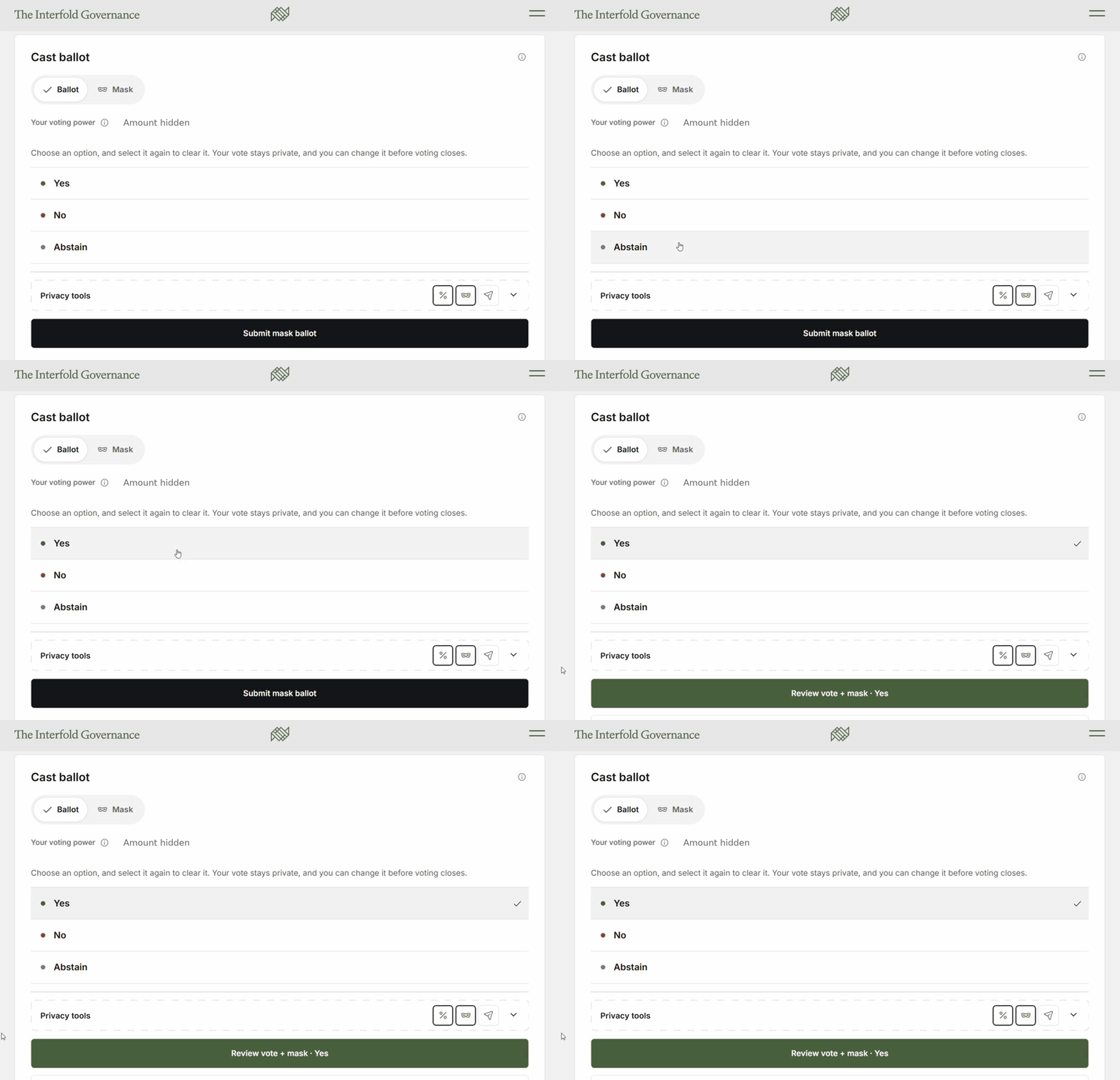
Read the proposal, then scroll to Cast ballot. Choose Yes, No, or Abstain.
The examples below show the Ciphernode Rewards Program. The same steps apply to other secret-ballot proposals.
2. Review the additional privacy tools
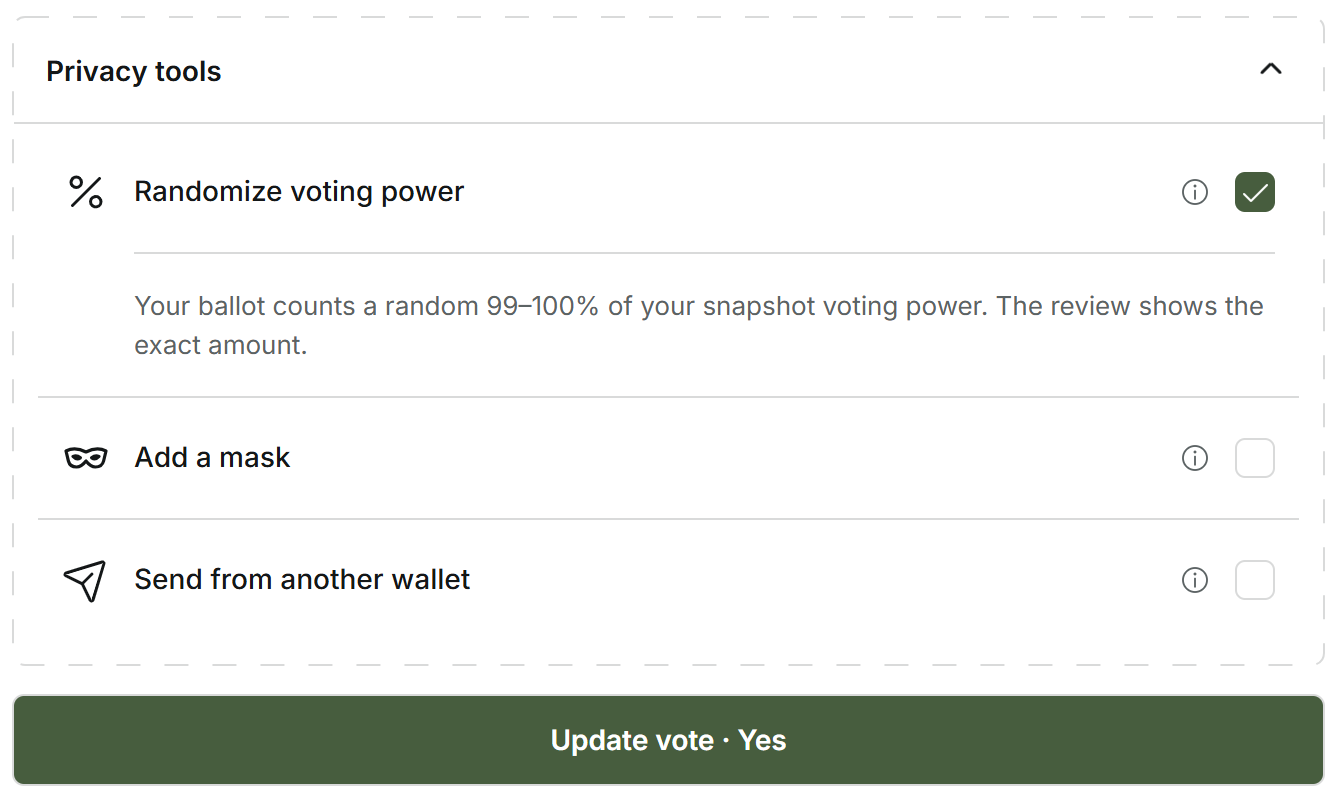
Your ballot is encrypted before it leaves your browser. The icons beside Privacy tools let you toggle additional options. Expand the panel to see their descriptions and settings.
- Randomize voting power uses a random amount between 99% and 100% of your snapshot voting power. Slightly reducing the weight makes it harder to link a ballot to your wallet balance. You can review the exact amount before confirming.
- Add a mask adds cover for another voter without changing their underlying vote or yours. Choose Random eligible voter or Specific wallet.
A mask creates an encrypted update that looks like vote activity on-chain, making that activity less reliable as evidence of someone’s choice. - Send from another wallet lets you prepare the encrypted vote with your voting wallet, then switch to a wallet with ETH to send it. Voting power still comes from the original wallet.
3. Review and submit
With masking enabled, select Review vote + mask. Check your choice, voting power, and mask recipient, then select Vote and mask.
If you aren’t adding a mask, use Submit encrypted ballot and follow the on-screen instructions.
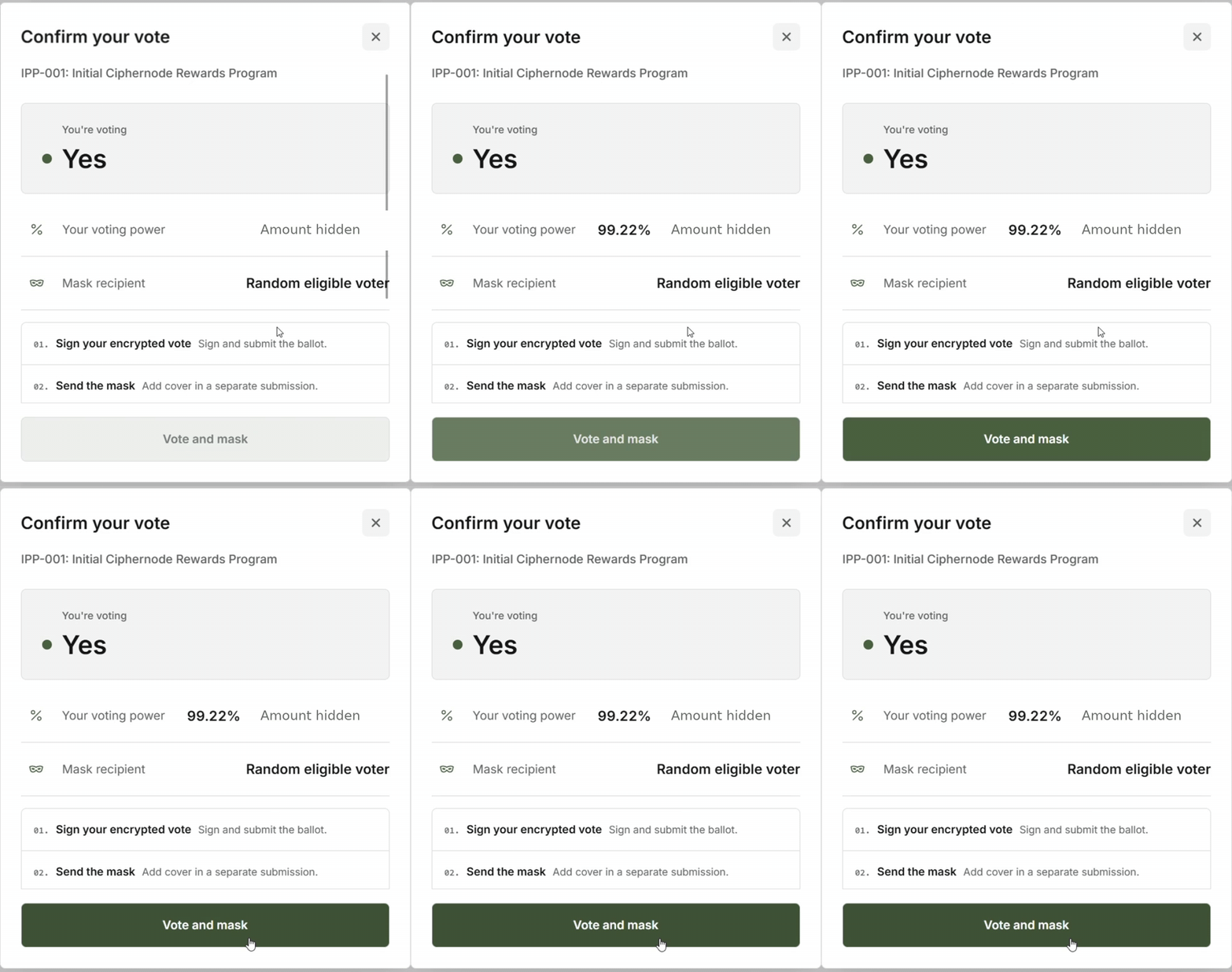
After confirming, review and complete the signing prompts in your wallet.
4. Wait for confirmation
In this example, the ballot processes first, followed by the mask. You may see encryption or proof-generation progress while each submission is prepared.
Keep the page open and follow any additional wallet prompts until the process completes.
Vote submitted successfully confirms that your encrypted ballot has been submitted.
If you included masking, also wait for Mask submitted successfully. You’re finished when both confirmations appear.
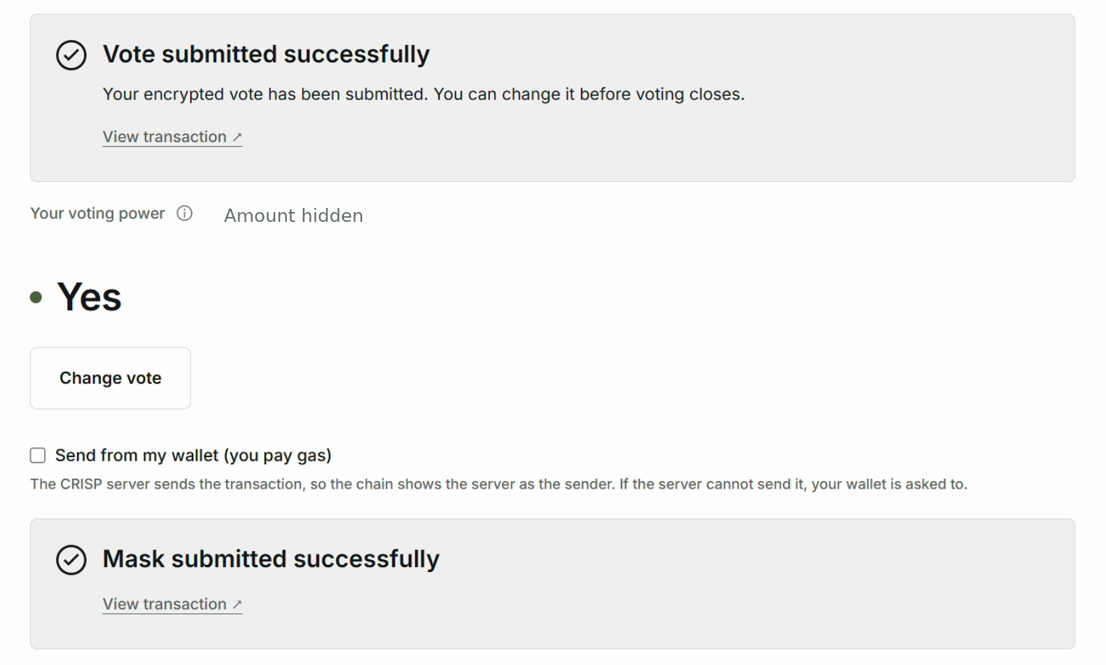
The Network progress bar tracks the overall voting round, not your individual submission. You do not need to wait for all seven stages to finish.
You can change your vote before voting closes using Change vote. Complete the submission process again if you do. Updating your vote does not add extra voting weight.
Need support?
Ask in the Interfold community. For more detail on voting power, secret ballots, and their privacy protections and limits, see the governance docs.
Take part in Interfold governance
Explore proposals and cast your secret ballot with eligible voting power.